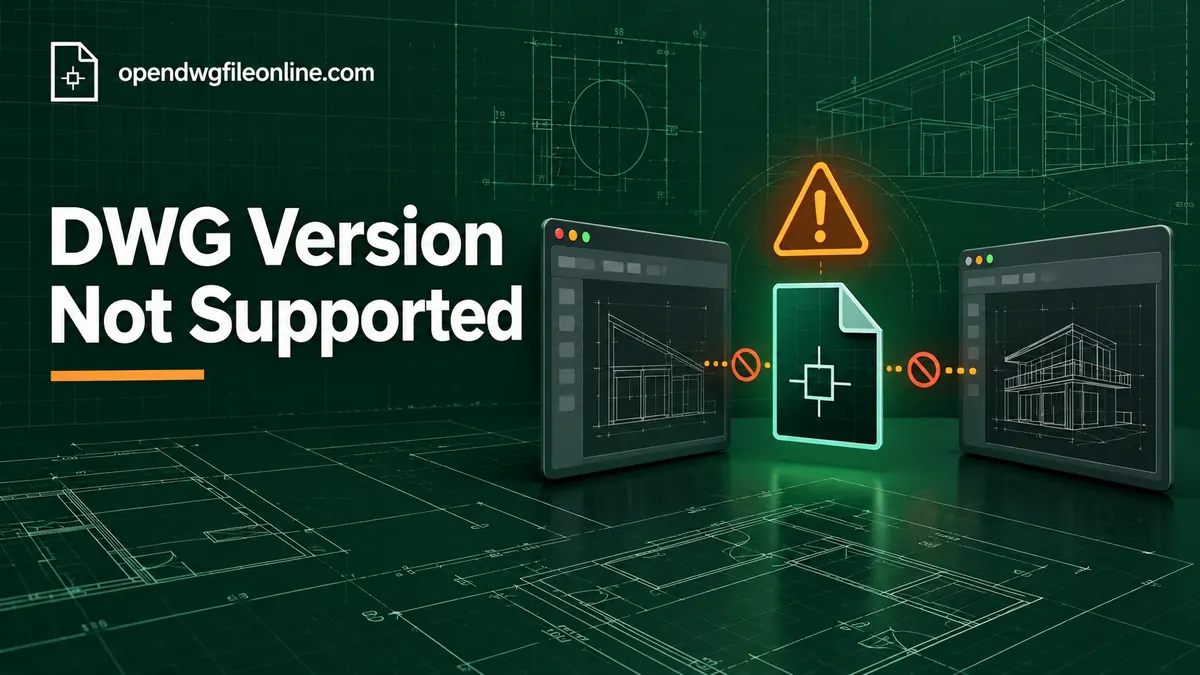
DWG Version Not Supported? Here’s What to Do
You try to open a DWG and get a message like one of these:
- “This drawing was created by a newer version and cannot be opened.”
- “Unsupported DWG version.”
- “File format not supported.”
- “Drawing file is not valid.”
They all point to the same problem. The drawing was saved in a DWG format your software doesn’t understand. The file is fine. Your software is just older than the file.
This happens a lot when you work with people who upgrade their CAD software more often than you do. The fix is quick once you know your options.
It also happens the other way round. If you’re on the newest software and you send drawings to a supplier or contractor, they may be the ones seeing this error. Knowing how to save in an older format makes you much easier to work with.
Below are four ways to get past the error, plus a few mistakes to avoid. None of them need you to buy anything.
Why DWG versions cause this error
AutoCAD’s DWG format changes every few years. Each new format adds features, and older software was built before those features existed. So it can’t read the new structure.
The main formats in use today are:
| Format | Version code | Saved by |
|---|---|---|
| 2018 | AC1032 | AutoCAD 2018 and later |
| 2013 | AC1027 | AutoCAD 2013 to 2017 |
| 2010 | AC1024 | AutoCAD 2010 to 2012 |
| 2007 | AC1021 | AutoCAD 2007 to 2009 |
| 2004 | AC1018 | AutoCAD 2004 to 2006 |
If your software tops out at the 2013 format and someone sends you a 2018 file, you’ll get an error.
To see which version a file is, open it in Notepad and read the first six characters. Our guide to checking a DWG file’s version explains it step by step.
Option 1: Open it in a newer viewer
You don’t always need to convert anything. A newer viewer may open the file straight away.
- A browser viewer. Our free online DWG viewer reads current DWG formats in any browser and doesn’t upload your file.
- DWG TrueView. Autodesk’s latest free version for Windows opens every DWG format AutoCAD can save.
- Autodesk Viewer. Autodesk’s web viewer, always up to date.
If you only need to look at the drawing, this is the fastest fix. For more choices, see free DWG viewers compared.
Option 2: Convert it with DWG TrueView (Windows)
If you need the file to work in your older CAD software, convert it to an older format. DWG TrueView does this for free.
- Install the latest DWG TrueView from Autodesk.
- Open TrueView and click DWG Convert, near the top left.
- Click Add File and choose your drawing. You can add several.
- Under Conversion Setups, click Conversion Setups, then New.
- Name it something like “Save to 2013.”
- Click Modify and choose the target format, such as AutoCAD 2013 Drawing.
- Choose whether to save in place or into a new folder. A new folder is safer.
- Click OK, then Convert.
You’ll get a copy in the older format that your software can open. Our DWG TrueView guide covers TrueView’s other tools.
Option 3: Convert it with ODA File Converter (Windows, Mac, Linux)
ODA File Converter is a free tool from the Open Design Alliance. It works on Windows, Mac and Linux, which makes it handy if you’re not on Windows.
- Download ODA File Converter from the Open Design Alliance website.
- Install and open it.
- Set the input folder to the folder with your DWG files.
- Set an output folder.
- Choose the output version, such as ACAD2013.
- Choose the output type: DWG, or DXF if you prefer.
- Click Start.
It converts every file in the folder. That’s useful when you’ve received a whole project at once.
Option 4: Ask the sender for an older format
If you work with the same people often, this is the best long-term fix. In AutoCAD, they can:
- Use Save As and choose an older format, like AutoCAD 2013 Drawing
- Or set a default: Options, then Open and Save, then “Save as,” and choose the older format
Once that default is set, every drawing they save works with your software. No more conversions.
A polite message works well: “Could you save drawings for us in AutoCAD 2013 format? Our software can’t read the 2018 format.”
What about other CAD programs?
The same rule applies to every CAD program that reads DWG, not just AutoCAD. AutoCAD LT follows the same formats as full AutoCAD. Programs like BricsCAD, GstarCAD, ZWCAD and DraftSight each support DWG formats up to a certain point, depending on the version you have.
If you use one of these, check its release notes or help pages for the newest DWG format it can open. If that’s older than the 2018 format, either update it or convert files before opening them.
Free tools vary even more. LibreCAD reads some older DWG files but struggles with newer ones. That’s why many LibreCAD users convert DWG to DXF first.
A typical example
An engineering firm still runs AutoCAD 2016 on a few machines because of a plugin they rely on. A new client sends drawings from a current AutoCAD. Every file fails with “created by a newer version.”
The quick fix is ODA File Converter. They point it at the client’s folder, choose ACAD2013 as the output, and click Start. Two minutes later, every drawing opens.
The lasting fix is a short email to the client asking for drawings in the 2013 format from now on. The client sets their default save format once, and the problem goes away for the rest of the project.
Which option should you choose?
| Your situation | Best option |
|---|---|
| Just need to look at it | Open in a newer viewer |
| On Windows and need to edit in old CAD | DWG TrueView convert |
| On Mac or Linux, or many files | ODA File Converter |
| Ongoing project with the same people | Ask for an older default format |
What you might lose when saving to an older format
Older formats don’t support every newer feature. When you save down, some things may change:
- Newer object types may be turned into simpler objects
- Some newer annotation features may be flattened
- Certain properties may be dropped
For everyday 2D drawings, you usually won’t notice. Lines, text, dimensions, layers and blocks all come through. The differences tend to show up in newer specialist objects that most simple drawings don’t use. For complex drawings, keep the original newer file and treat the older copy as a working copy for your software only.
Don’t do this
Don’t rename the file. Changing the extension or editing the first characters in Notepad doesn’t convert anything. It just breaks the file.
Don’t use random online converters for private drawings. Many upload your file to an unknown server. ODA File Converter and TrueView work locally.
Don’t keep re-saving back and forth. Each conversion is a chance to lose detail. Convert once, work on it, and send back in the format the other person asked for.
Other “not supported” errors
Sometimes the message isn’t about the DWG version at all.
The file isn’t a DWG. It might be a DXF, DWF, PDF or ZIP with the wrong extension. Check the first characters in Notepad.
The file is damaged. If a newer viewer also fails, the file may be corrupt. See how to fix “drawing file is not valid”.
Your software can’t read certain objects. Some third-party plugins add custom objects. Other programs may show them as plain boxes or skip them. Ask the sender to explode or export those objects if they matter.
Keeping your tools current
Here’s a quick routine that avoids most version headaches:
- Update DWG TrueView every year or so
- Keep a browser viewer bookmarked for anything that won’t open locally
- Agree on a DWG format with partners at the start of each project
- Keep ODA File Converter installed for batch conversions
Questions people ask
What does “created by a newer version” mean?
The drawing was saved in a DWG format that’s newer than your software supports. Convert it or use a newer viewer.
Can I open an AutoCAD 2025 file in AutoCAD 2016?
Not directly. AutoCAD 2025 saves in the 2018 format by default. AutoCAD 2016 reads up to the 2013 format. Convert the file to 2013 first, or ask the sender to save in that format.
Is converting a DWG safe?
Yes, if you use trusted tools like TrueView or ODA File Converter and keep the original.
Does a newer DWG format mean a better drawing?
No. The format is about which software saved it, not the quality of the design.
If you deal with this error often, keep a short note of which DWG format each of your regular partners uses. It turns a frustrating error into a thirty-second job every time a new drawing arrives.
The short version
“DWG version not supported” means your software is older than the file. Open it in a newer viewer, convert it with DWG TrueView or ODA File Converter, or ask the sender for an older format. If you just need to look at the drawing, our free online DWG viewer reads current formats in seconds.